Troubleshoot a Nest thermostat that will not turn on
Use the display light, battery or USB power path, base seating, breaker and HVAC state, and professional-service threshold without unsafe live wiring.
Direct answer
The shortest reliable path.
Identify the thermostat model before charging or replacing batteries. A Nest display with a USB port can be removed and charged with a wall charger; Google says not to use a computer or other unpowered USB port. Models with replaceable batteries should receive the specified fresh batteries. Re-seat the display squarely on its base. If the thermostat still lacks power, check the HVAC breaker, furnace switch, and system service state without touching live wiring. Persistent power loss, repeated shutdown, or wiring uncertainty requires a qualified HVAC professional.
Official visual references
Match what you see before you act.
These visuals are tied to the cited support pages. Read each model scope and observation before using it as a match.

Nest Learning Thermostat (4th gen) model reference
Use the product form only to select Google’s fourth-generation troubleshooting branch; the image does not diagnose why power is absent.
- Look for
- Match the dark glass display and housing before applying the fourth-generation dark-yellow-light and charging guidance.
- Applies to
- Nest Learning Thermostat (4th gen) as pictured and labeled in Google’s cited support article.
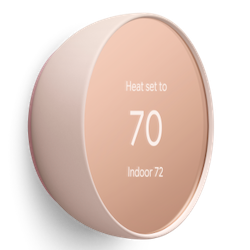
Nest Thermostat model reference
Google separates this thermostat family from the Learning Thermostat branches, so its battery procedure must not be inferred from the other image.
- Look for
- Match the mirrored circular face and slim side housing, then follow the Nest Thermostat section for its replaceable-battery procedure.
- Applies to
- Nest Thermostat as pictured and labeled in Google’s cited support article; not the Nest Learning Thermostat charging branch.
System view
Check the whole path.
- 01Home breaker and HVAC power
- 02Thermostat wiring and base
- 03Thermostat battery
- 04Display startup light
- 05Heating or cooling call
Scope before steps.
Google Nest thermostats with a blank, unresponsive, blinking, or repeatedly restarting display.
Live-voltage testing, rewiring an HVAC system, bypassing safety switches, installing a C wire or Nest Power Connector, or diagnosing a furnace internally.
Procedure
Do this in order.
- 01
Read the display light before removing it
Observe whether the display is blank or shows a blinking green, red, or other status light, and note how long the state persists.
- 02
Restore model-appropriate battery power
For a display with a USB charging port, remove it straight from the base and use a compatible wall charger for the interval in Google’s model procedure. Do not use a computer or unpowered USB port. For a model with replaceable batteries, install the specified new batteries as a matched set.
- 03
Re-seat the display and allow startup
Align the display connector with the base and press it evenly until it clicks. If a green light indicates an update or restart, allow the normal startup interval before intervening.
- 04
Check the upstream HVAC power boundary
Verify the HVAC breaker, service switch, and furnace or air-handler power are on. Check for an obvious system maintenance condition such as a safety shutdown, but do not open energized equipment or move wiring.
Diagnostic matrix
Read the result, not the guess.
| What you see | Check next | What it means |
|---|---|---|
| The display starts after charging or battery replacement | Re-seat it, confirm the home screen stays on, and make one normal heating or cooling request. | Low thermostat battery power caused the immediate failure. |
| A green light blinks for more than 15 minutes and controls remain frozen | Re-seat the display once, then use Google’s model-specific restart path if it remains unresponsive. | Google identifies this as a possible frozen startup or update rather than normal brief activity. |
| The thermostat powers down again after a short recovery | Arrange professional HVAC and wiring diagnosis. | The system may not be supplying reliable power to the thermostat. |
Stop conditions
Know when not to keep changing things.
- Turn HVAC power off before any wire is connected or disconnected.
- Do not bypass a furnace, air-handler, condensate, or low-pressure safety switch.
- Contact a qualified professional for repeated power loss, wiring uncertainty, a tripping breaker, or a system that needs maintenance.