Start with what you see
Let the result choose the next step
The watch pauses near 80% on the charger
Look for an open charge ring and use Charge to Full Now once.
This is optimized charging, not battery drain. Keep the feature on unless you need a full charge sooner.Battery life recovers several days after an update
Compare the same routine and connection conditions rather than a single unusually active day.
Wait and keep the watch. Temporary update-related background work was the likely difference.Drain improves near the iPhone, on strong Wi-Fi, or in Low Power Mode
Repeat the single change once before accepting the connection or feature tradeoff.
Keep the watch if that tradeoff works for you. Compare an upgrade only if its added features or documented battery behavior solve a need you still have.Battery Health shows Battery Needs Service
Contact Apple Support and provide the recorded battery-health state.
Seek service. Compare replacement only after you know the service option and what a new model would change.Severe drain repeats, but there is no service message
Bring Apple the Battery graph, watchOS version, connection state, and two comparable-day records.
Escalate the repeatable result before replacing the watch. The available evidence does not establish a universal failure percentage.
Step 1
Check for an 80% charging pause first
If the watch remains near 75–80% while still on its charger, look for Apple’s open charge ring. Keep it on the charger, tap the charging circle, and choose Charge to Full Now. Continue with the runtime test only when the watch reaches its intended charge and then loses power too quickly.
Optimized Battery Charging and Optimized Charge Limit can intentionally pause charging near 80%. That is not evidence of runtime battery drain.
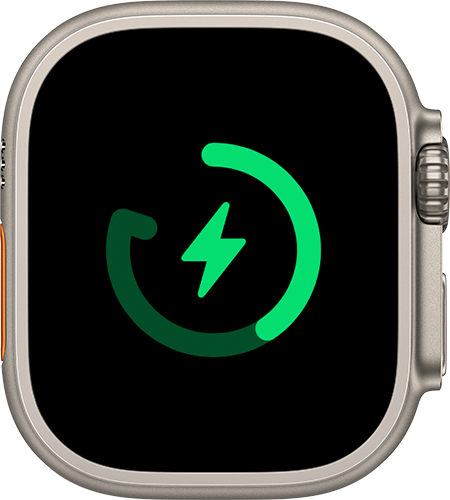
Recognize the Optimized Charge Limit ring
Apple uses the open ring to show an optimized charge limit. It does not show a runtime-drain failure.
When this ring appears near the optimized limit, use Charge to Full Now if today requires 100%; do not diagnose battery drain from the charging pause.
Model scope
Supported Apple Watch models with Optimized Charge Limit under current United States and Canadian Apple Support guidance.
Step 2
Build a baseline you can compare
Open Settings > Battery and note the starting level. After a representative day, record the ending level and elapsed time. On the comparison day, keep workouts, audio, calls, display use, and time away from the paired iPhone as similar as practical.
Apple provides a depletion graph, but one unusually active day cannot show whether battery condition or workload caused the change.

Read the Apple Watch Battery graph
Apple’s Battery screen shows the current charge and the depletion graph. Use it to compare similar days, not to diagnose a battery from one screenshot.
Look for when the charge dropped and compare that period with workouts, audio, calls, display use, and time away from the paired iPhone.
Model scope
The Battery screen represented in current United States Apple Watch support; labels and layout can vary by watchOS version and model.
Step 3
Wait when the change followed an update
If the drain began after updating watchOS, use the watch normally for a few days and compare the same daily routine again.
Apple says update-related tasks continue in the background and can temporarily affect battery life.
Step 4
Test wireless cost before changing hardware
For one comparable period, keep the watch within Bluetooth range of its paired iPhone. When the phone is away, use strong Wi-Fi instead of cellular when available. Do not change the workout, audio, display, and connection conditions all at once.
Apple identifies Bluetooth to the paired iPhone as the most efficient connection and Wi-Fi as using less power than cellular. Changing one condition makes the result useful.
Step 5
Finish the remaining checks
Test feature load separately
Turn on Low Power Mode for one comparable period. If display use is the suspected difference, run a separate comparison with Always On disabled. If audio is the suspected difference, use Bluetooth headphones instead of the watch speaker.
Apple documents each of these as a battery-saving control. Testing them separately shows which tradeoff matters instead of producing one unexplained “better” day.
Make the ownership decision
Open Settings > Battery > Battery Health. If Battery Needs Service appears, contact Apple. If it does not appear but the same severe drain continues across controlled days, contact Apple with the Battery graph and your conditions before paying for a replacement or choosing a new watch.
Maximum Capacity describes capacity relative to when the battery was new. Apple’s explicit action signal is Battery Needs Service; the controlled record makes a no-message case easier to assess without inventing a universal percentage threshold.
Scope and limits
Before you apply this advice
This covers: United States Apple Watch models that finish charging normally but run down sooner than expected during ordinary use or shortly after a watchOS update. Canada is included because current Canadian Apple Support pages publish the same drain, Battery Health, charging-graph, and optimized-charging guidance.
This does not cover: A watch that will not charge or turn on, exact runtime guarantees, third-party battery apps, opening the watch, battery-replacement pricing, or a claim that a particular Maximum Capacity percentage requires replacement; United Kingdom, European Union, Australia, Japan, or other-region hardware SKUs, menu translations, warranty and support policies, prices, or availability the cited United States and Canadian Apple Support pages do not support.
- Stop using and seek service for swelling, separation, unusual heat, or physical battery damage.
- Do not repeatedly disable safety or battery-health features merely to hide a rapid drain.
- Contact Apple when Battery Needs Service appears or repeatable drain remains severe after update activity, wireless conditions, and workload are controlled.
Sources
Where the facts come from
- 01Apple SupportIf the battery in your Apple Watch drains too quickly
United States Apple guidance for Bluetooth, Wi-Fi and cellular efficiency, Low Power Mode, Always On, audio, update timing, Battery Health, and Battery Needs Service escalation. Re-opened 2026-09-12.
- 02Apple Support — CanadaIf the battery in your Apple Watch drains too quickly
Canadian English Apple guidance re-opened 2026-09-12. It publishes the same connection, workload, update, Battery Health, and service branches used to include Canada explicitly.
- 03Apple SupportCheck your battery and charge your Apple Watch
United States Apple guidance for Settings > Battery, current charge level, depletion graph, and the official Battery-screen visual. It supports the comparison record, not a universal runtime claim. Re-opened 2026-09-12.
- 04Apple Support — CanadaCheck your battery and charge your Apple Watch
Canadian English Apple guidance re-opened 2026-09-12. It supports the same Battery graph and charging-state checks used for the Canadian scope.
- 05Apple SupportAbout Optimized Battery Charging on Apple Watch
United States Apple guidance for the 75–80% hold, open charge ring, Charge to Full Now, and the difference between Optimized Battery Charging and Optimized Charge Limit. Re-opened 2026-09-12.
- 06Apple Support — CanadaAbout Optimized Battery Charging on Apple Watch
Canadian English Apple guidance re-opened 2026-09-12. It supports the same 80% optimization branch and manual full-charge action used for the Canadian scope.