Reconnect a DualSense controller that will not pair with PS5
Use a data-capable USB path, the PS button, controller charge, prior-device state, reset button, and software update in a safe order.
Direct answer
The shortest reliable path.
Turn on the PS5, connect the DualSense directly with the included or a proven data-capable USB cable, and press the PS button. A charge-only cable can power the controller without pairing it. If the controller still will not connect, turn off the console, press the rear reset button with a pin, reconnect by USB, and press PS again. Update controller software after pairing succeeds.
Official visual references
Match what you see before you act.
These visuals are tied to the cited support pages. Read each model scope and observation before using it as a match.
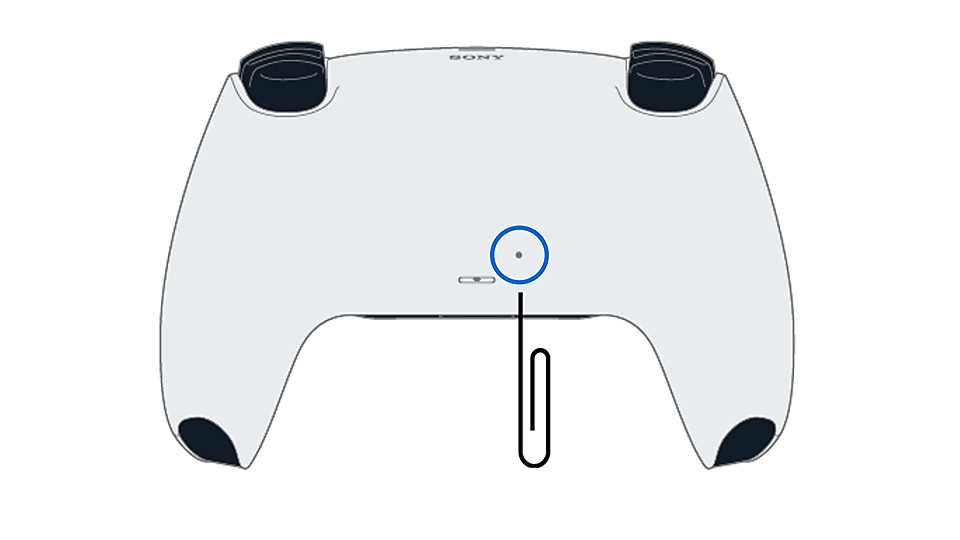
DualSense rear reset-button location
PlayStation’s official frame identifies the recessed reset opening on the controller back; use it only after the PS5 is turned off.
- Look for
- Match the small opening beside the Sony-marked rear shell, press the internal button with a pin, then reconnect by a data-capable USB cable.
- Applies to
- Standard DualSense wireless controllers represented in PlayStation’s cited troubleshooting article; not a DualSense Edge disassembly guide.
System view
Check the whole path.
- 01PS5 powered on
- 02USB data cable
- 03Controller USB port
- 04PS button pairing
- 05Wireless controller software
Scope before steps.
Standard DualSense wireless controllers pairing with a PS5 console by USB and then wireless connection.
DualSense Edge profiles, stick drift, physical button damage, third-party controllers, Remote Play, or unsupported Bluetooth hosts.
Procedure
Do this in order.
- 01
Pair by direct USB first
Turn on the PS5, connect the controller directly to the console with the included USB cable, and press the PS button.
- 02
Prove the cable carries data
If the controller charges but does not pair, try another console USB port and a cable known to transfer data.
- 03
Remove the prior host from the test
Turn off Bluetooth on a recently used phone, tablet, or computer and reconnect the controller to PS5 by USB.
- 04
Reset the controller
Turn off the PS5, press the recessed reset button on the controller back, then reconnect by USB and press PS.
- 05
Update after connection
Open Settings → Accessories → Controller (General) and install available DualSense device software.
Diagnostic matrix
Read the result, not the guess.
| What you see | Check next | What it means |
|---|---|---|
| Controller charges but never pairs | Replace the charge-only cable with a proven data cable. | USB power is present, but registration data may not be reaching the console. |
| Another controller works on the same cable | Reset and inspect the affected controller. | The console USB path is proven. |
| Affected controller works on another PS5 | Retest console ports and system software. | The controller hardware can pair; the original console path remains. |
| Pairs by cable but drops wirelessly | Update software and remove interference before repeating reset. | Initial registration works; the wireless runtime path is failing. |
Stop conditions
Know when not to keep changing things.
- Do not force a damaged USB connector or continue using a cable that becomes hot.
- Do not open the controller enclosure for a pairing-only fault.
- Use PlayStation Repairs when direct data USB and the documented reset still cannot pair the controller.