Fix a TP-Link Deco that disconnects or turns red
Use the affected unit and its exact LED pattern to separate an ISP, main Deco, satellite backhaul, client, or reboot problem.
Direct answer
The shortest reliable path.
Read the Deco LEDs while the outage is happening. A solid red main Deco points to the modem or ISP path; a red satellite while the main Deco stays green or white points to lost backhaul; normal LEDs with only some devices dropping point to the client branch; and an off-yellow-red-white or green cycle indicates a reboot. Preserve the system log before rebooting a recurring failure, then test only the matching branch instead of resetting the whole mesh.
Official visual references
Match what you see before you act.
These visuals are tied to the cited support pages. Read each model scope and observation before using it as a match.
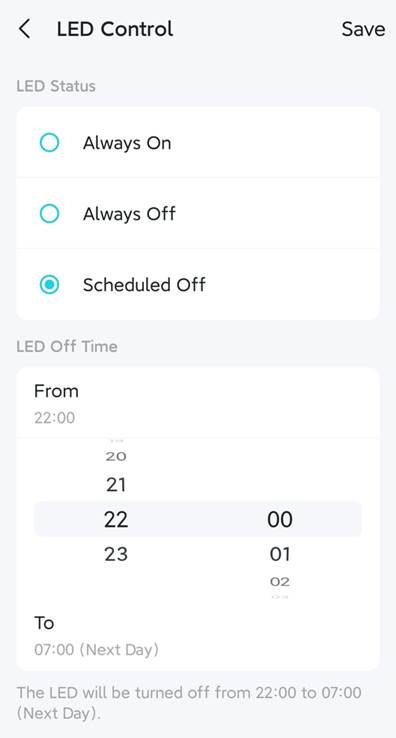
Check whether Deco LED Control hides the status light
TP-Link’s current LED Control screen can intentionally hide the light, so confirm this setting before interpreting a dark Deco as unpowered.
- Look for
- Select Always On during diagnosis or verify the outage is outside the scheduled-off period.
- Applies to
- Deco models and app versions that expose More > LED Control; exact layout can vary.
System view
Check the whole path.
- 01ISP service and modem
- 02Main Deco Ethernet link
- 03Main Deco routing
- 04Satellite Ethernet or wireless backhaul
- 05Client device
Scope before steps.
TP-Link Deco mesh systems with intermittent internet, red satellite or main-unit LEDs, client dropouts, or unexplained restart cycles.
A Deco rendered unresponsive by a failed firmware update, third-party firmware, opening hardware, or a model whose manual defines a different LED pattern.
Procedure
Do this in order.
- 01
Make sure the LEDs are visible
In the Deco app, open More > LED Control and verify that Always Off or a scheduled-off period is not hiding the status light. Then observe the units during the next failure.
- 02
Choose the branch from the live state
Classify the failure as solid-red main Deco, red satellite with a healthy main Deco, healthy LEDs with client dropouts, or a repeated reboot color sequence.
- 03
Prove the upstream path for a red main Deco
Reseat and inspect the modem-to-main-Deco Ethernet cable, try known-good ports and cable, then connect a computer or spare router directly to the modem for a sustained test.
- 04
Prove placement or hardware for a red satellite
Swap the affected satellite with a working one. For wireless backhaul, move the units closer and away from obstacles. For Ethernet backhaul, temporarily remove switches and extra cables from the path.
- 05
Isolate clients or rebooting hardware
With healthy Deco LEDs, test the affected client on another node, cable, or port. For a reboot cycle, use the original power adapter and swap a known-working adapter or Deco position only between compatible units.
Diagnostic matrix
Read the result, not the guess.
| What you see | Check next | What it means |
|---|---|---|
| The main Deco is solid red and a direct modem test also fails | Save the modem state and contact the ISP. | The Deco is reporting an upstream service failure rather than creating it. |
| Only one satellite is red and the failure follows it after a location swap | Contact TP-Link with the unit serial number, firmware version, LED state, and swap result. | The evidence follows the satellite hardware instead of the room or backhaul location. |
| All Deco LEDs are healthy but one client drops | Test that client on another node and, when wired, another cable and port. | The mesh internet path remains up; continue with the client-specific branch. |
| A Deco repeatedly cycles off, yellow, red, then white or green | Verify the original power adapter and use a controlled compatible-unit swap. | TP-Link identifies this pattern as a reboot, not an ordinary backhaul dropout. |
Stop conditions
Know when not to keep changing things.
- Do not factory-reset the mesh before saving topology, firmware versions, and the recurring-failure system log.
- Do not change DNS, clone a MAC address, and rearrange backhaul at the same time; each test must have one interpretable result.
- Stop using a damaged power adapter or Ethernet port and contact TP-Link if the failure follows the same unit after a controlled swap.