Start with what you see
Let the result choose the next step
The computer mounts HERO13 Black but Quik Desktop shows nothing
Stop using Quik Desktop. Copy via the MTP mount or a microSD reader, then open the files in Quik Mobile or an NLE.
GoPro documents Quik for Desktop as unsupported for HERO13 Black even when MTP recognition is correct.Long takes appear as multiple GX files
Keep chapter groups with the same file number together and import them in order.
HERO13 Black chaptering splits large recordings by design and cannot be turned off.Desktop software cannot decode the clips
Confirm the files are HEVC (GX) and that the editor or OS HEVC support is present before re-encoding.
All HERO13 Black video uses HEVC; missing codec support is an edit-stage prerequisite, not a failed offload.Cloud Media Library is empty after a local copy
Verify subscription upload status on its own; local MTP or card copy does not imply cloud ingest.
GoPro’s desktop sunset notice presents cloud web access as a subscriber library feature, not an automatic result of USB offload.Wireless Quik cannot find the camera
Leave this offload workflow and follow gopro-quik-app-camera-not-connecting.
Pairing and local-network discovery are a different failure from media offload.
Step 1
Retire Quik Desktop from the workflow
Do not install or reopen Quik Desktop for HERO13 Black. GoPro’s United States news notice discontinued Quik Desktop to prioritize mobile apps, removed Quik Desktop for Mac from the App Store on Dec. 31, and stated a Windows version would not be released. Community legacy-software guidance also lists Quik Desktop as discontinued.
Building the workflow around a discontinued desktop app invents a HERO13 import method GoPro no longer supports.
Step 2
Choose USB/MTP or microSD offload
Power on the camera, connect USB-C to the computer, and confirm the USB symbol on the camera display when using a cable. If the computer mounts HERO13 Black as an MTP device, copy the media folders from that mount. If USB transfer fails or the desktop still expects Quik Desktop, power off, remove the microSD card, and copy the same folders with a card reader or adapter.
GoPro’s HERO13 USB article states Quik for Desktop does not support HERO13 Black and that an MTP mount means the camera is working as intended; it also points to an SD-card adapter when card access is needed.
HERO13 Black out-of-box Quik connect
Official GoPro Tips OOBE video opens near the Connect to Quik / saving-media segment. Quik Desktop remains discontinued for HERO13 Black.
Use the Quik connect portion only as orientation; finish a verified local USB/MTP or microSD copy before deleting card media.
Model scope
HERO13 Black first media handling in the United States from GoPro Tips’ official YouTube OOBE guide.
Step 3
Preserve HEVC chapter sets together
Copy complete chapter groups that share the same file number (for example GX01XXXX.mp4, GX02XXXX.mp4, GX03XXXX.mp4) plus accompanying .lrv and .thm files when present. Do not discard chapters or companion files before the edit stage confirms what Quik or the NLE needs.
HERO13 Black chaptering is intentional, cannot be disabled, and uses HEVC with GX naming; Quik relies on .lrv/.thm companions for copy, playback, and share helpers.
Step 4
Edit in Quik Mobile and/or a desktop NLE
For phone or tablet edits, open Quik Mobile and use its documented media view, download, and save flows on the copied or camera-linked files. For desktop edits, import the local HEVC chapters into an NLE that can read them, placing chaptered segments on a timeline in order. Do not claim Quik Desktop as the desktop editor.
GoPro’s sunset notice points owners who prefer desktop editing toward the editors they already use, while Quik Mobile remains the documented mobile editor.
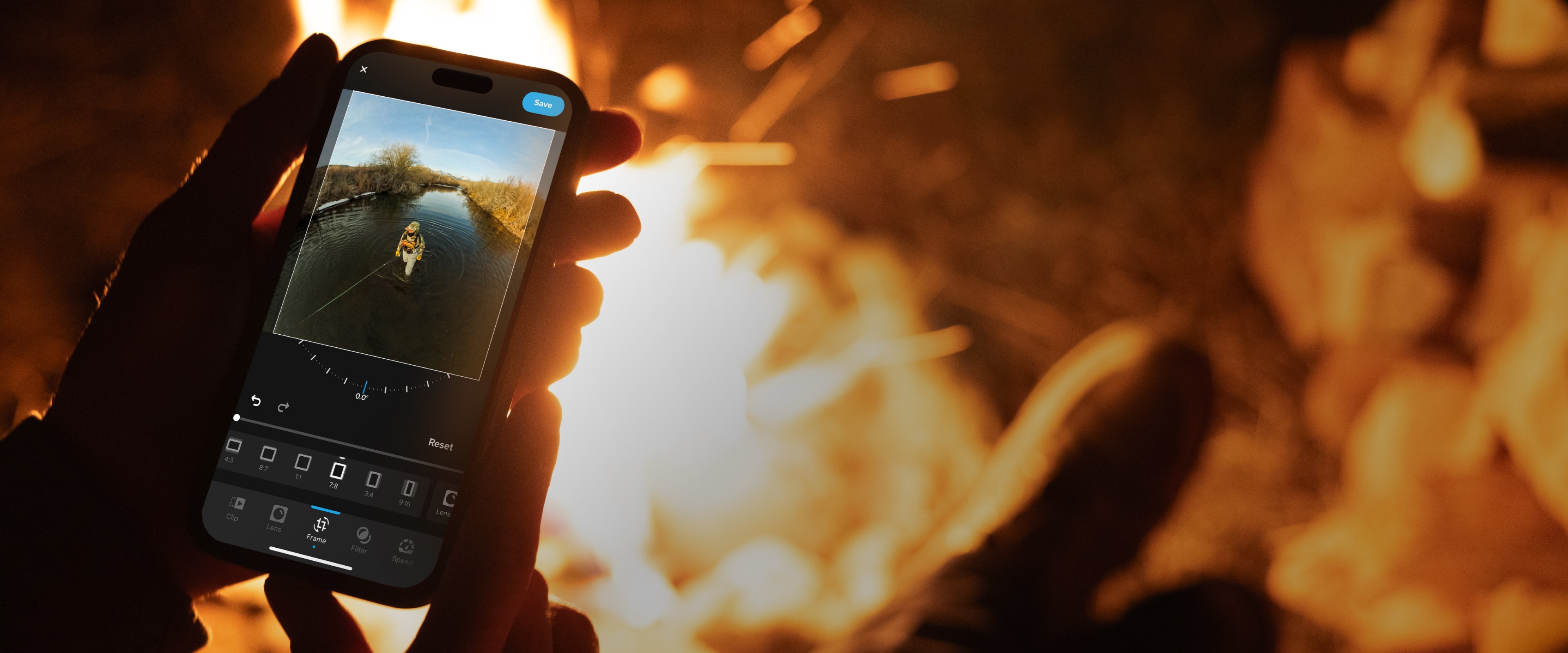
Quik Mobile editing UI
Official GoPro Quik Mobile edit UI identifies the mobile editor used after offload. It does not demonstrate export quality.
Use the still only to recognize Quik Mobile as the documented mobile editor after USB/MTP or microSD copy.
Model scope
GoPro Quik Mobile editing orientation for HERO13 Black media in the United States.
Step 5
Finish the remaining checks
Keep cloud and subscription tools optional
If you hold a GoPro subscription with media already in GoPro Cloud, use the Media Library web tools GoPro documents for browser review. Keep Auto Upload and SD-card delete choices tied to what Quik Mobile shows as uploaded versus local-only. Finish a verified local copy before deleting card media.
Cloud upload and subscription web access are limited by plan and upload state; they do not replace a reproducible local offload before card cleanup.
Validate the edit set before wiping the card
Confirm the destination folder contains every expected chapter, that Quik Mobile or the NLE can open a sample clip, and that playback of chaptered takes is continuous in Quik or reconstructable on the timeline. Only then use camera SD-card management or Quik delete/format flows.
HERO13 SD-card management can delete uploaded or all GoPro media; validation belongs before irreversible card cleanup.
Scope and limits
Before you apply this advice
This covers: GoPro HERO13 Black owners in the United States who need a local offload and edit workflow after Quik Desktop was discontinued, including USB/MTP mounts, microSD card copies, Quik Mobile, and desktop NLE imports of HEVC chaptered files.
This does not cover: Bluetooth or Wi-Fi pairing repairs covered by gopro-quik-app-camera-not-connecting; Quik Desktop installation or HERO13 support claims; MAX or older HERO generations unless a cited HERO13 source also names them; United Kingdom, European Union, Australia, or other-region GoPro store SKUs, menu translations, warranty policies, prices, or availability the cited United States GoPro sources do not support.
- Do not install Quik Desktop as the HERO13 Black import tool.
- Do not delete card media until a local copy of every needed chapter group is verified.
- Do not use this workflow as a Quik pairing or camera-not-connecting fix.
- Do not invent Canada-specific Quik Desktop, cloud-plan, or store policies from United States-only GoPro notices.
Sources
Where the facts come from
- 01GoProGoPro Sunsetting Quik Desktop App
United States news notice discontinuing Quik Desktop, Mac App Store removal on Dec. 31, no Windows release, mobile-first editing priority, and subscriber Media Library web access. Independently re-opened 2026-09-06.
- 02GoPro SupportHERO13 Black: Camera Is Not Recognized When Plugged Into A Computer USB Port
States GoPro Quik for Desktop does not support HERO13 Black, that MTP recognition means the camera is working as intended, and points to an SD-card adapter when card access is needed. Independently re-opened 2026-09-06.
- 03GoPro SupportHERO13 Black: File Chaptering And Naming Information
HERO13 Black HEVC-only video, GX chapter naming, non-disableable chapter sizes, and .lrv/.thm companion files for Quik. Independently re-opened 2026-09-06.
- 04GoProOut Of The Box Experience: GoPro HERO13 Black Creator Edition Basics
United States HERO13 Black OOBE sections covering microSD requirements, saving media, Quik app, and subscription orientation for first media handling. Independently re-opened 2026-09-06.
- 05GoPro SupportQuik (Mobile): How To View, Download, And Delete Media
Quik Mobile media tabs, cloud-to-device download, save-to-phone, and delete flows used after offload. Independently re-opened 2026-09-06.
- 06GoPro TipsHow to use HERO13 Black Out of the Box (YouTube)
Official GoPro Tips YouTube OOBE video including Quik connect / saving media; embedded from the Connect to Quik chapter (~1:55). Independently re-opened 2026-09-06.