Start with what you see
Let the result choose the next step
The camera never appears in Quik
Confirm the exact model’s Pair Device screen, phone Bluetooth state, Quik’s displayed phone permission, proximity, and camera battery.
Discovery is failing before the camera Wi-Fi link is attempted.The camera appears but connection times out
Review the permissions actually shown for Quik; if those are allowed, test 2.4 GHz only when the phone or region does not support 5 GHz.
Bluetooth discovery works; the direct Wi-Fi stage is failing.Pairing succeeds but Live Preview, View Media, or Auto Upload fails
Keep the pairing. Join camera Wi-Fi for preview or View Media; check the cloud prerequisites only for Auto Upload.
Discovery is complete; remaining failures are post-pair features, not “camera not found.”View Media shows thumbnails, but one clip will not play
Move that file to a computer for full-resolution review before changing the camera connection.
The camera and media list are connected; the phone may not support that clip’s resolution or frame rate.Auto Upload fails while local control and media work
Verify the subscription, non-captive internet Wi-Fi, wall charger, 3 GB free SD space, and 30% battery. Do not use a computer USB connection for this test.
The local connection is healthy; one of the separate cloud-upload conditions is missing.
Step 1
Start at the first failed stage
Open Quik Camera Chooser. If the camera is absent, work on discovery. If it is listed and responds to controls, pairing already works; skip to preview, View Media, or Auto Upload. Do not remove a working camera just because a later feature fails.
GoPro uses Bluetooth for pairing and control, but later features can depend on camera Wi-Fi or cloud-upload conditions.
Step 2
Repair discovery and first pairing
On LIT HERO and HERO13 Black, open the camera Dashboard and select Pair Device. Turn on phone Wi-Fi and Bluetooth, open Quik, and follow the on-screen pairing flow with the devices beside each other. Use the exact United States manual when another model does not show this control.
A camera that has not entered its model-specific pairing state cannot be discovered reliably.
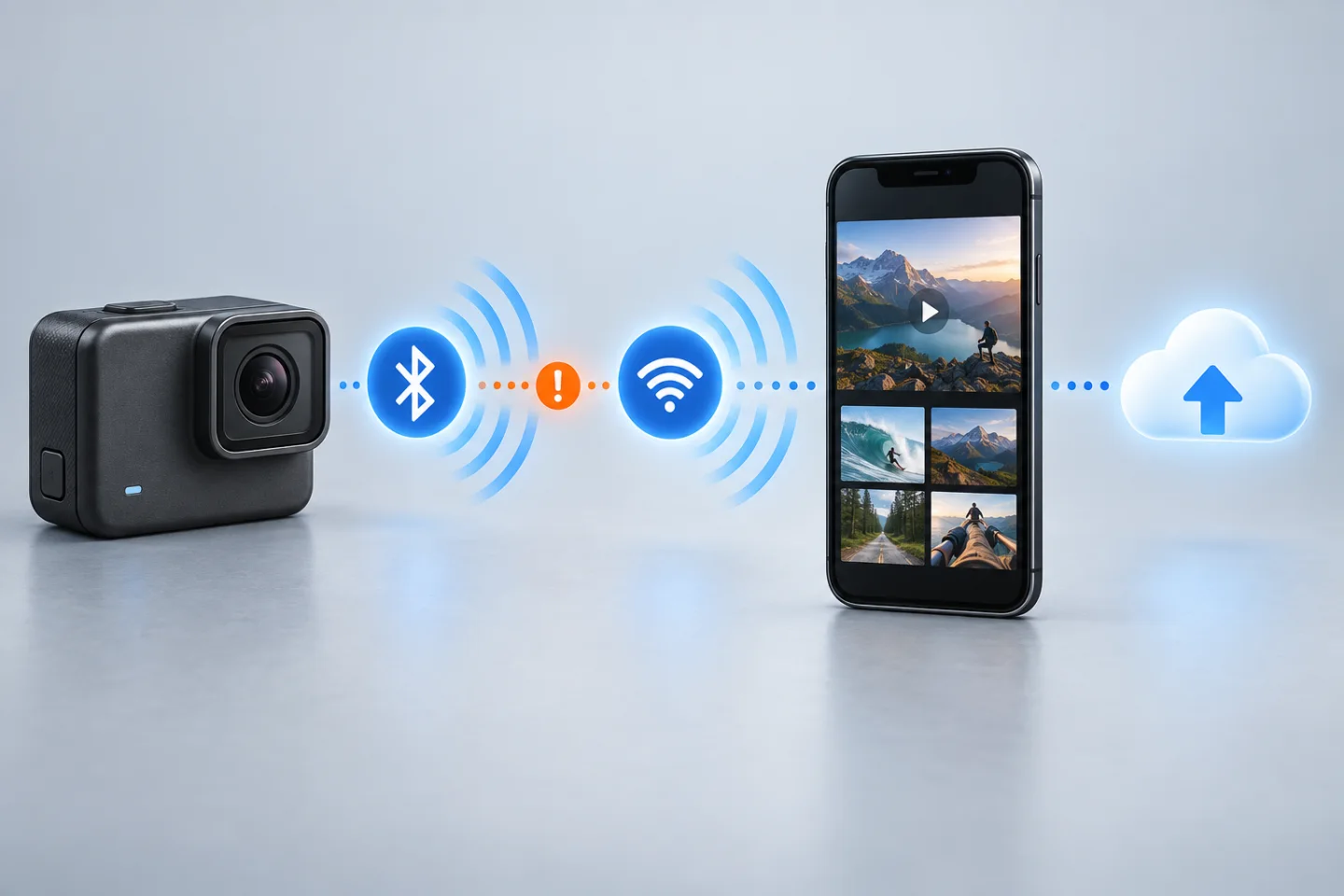
Find the first broken Quik connection stage
GearCurrent illustration of the connection stages. It is conceptual, not a GoPro interface, wireless measurement, or camera test.
Use the interrupted handoff to identify whether discovery, camera Wi-Fi, phone playback, or cloud upload is the first failed job.
Model scope
Conceptual orientation for the United States GoPro Quik connection stages supported by the cited manuals and help pages.
Pair a GoPro with its mobile app
GoPro’s official quick-start video demonstrates the camera-to-phone pairing sequence used for discovery and first connection.
Use the video to distinguish camera pairing mode from the later app connection; if discovery succeeds but connection stalls, continue with permissions and Wi-Fi-band checks only.
Model scope
The HERO8-era GoPro App interface shown; the app is now named Quik and current camera menu wording varies by generation.
Step 3
Check permissions if the camera appears but pairing stalls
On iPhone, check Quik under Settings > Privacy & Security > Bluetooth and Local Network. On Android, open Settings > Apps > Quik > Permissions and review Nearby devices or Location when Quik requests it. Return to Quik after allowing the required access.
The phone can find the camera yet block the app from completing the connection.
Step 4
Join camera Wi-Fi for preview and camera media
If Quik controls the camera but Enable Preview or View Media cannot reach it, accept Quik’s prompt to join the GoPro Wi-Fi. If that Wi-Fi join fails and the phone or region does not support 5 GHz, use Connections > Wi-Fi Band on a supported camera and choose 2.4 GHz. Leave 5 GHz in place when it works.
GoPro separates Bluetooth control from the Wi-Fi connection used for Live Preview, SD-card media, and firmware updates.
Step 5
Finish the remaining checks
Recover an empty View Media list
If Quik controls the camera but View Media is empty, capture one short clip from Quik, power the camera off from Camera Chooser, choose Tap to Power On, and open View Media again. If thumbnails appear but a clip will not play, use a computer to review that file instead of deleting the pairing or formatting the card.
GoPro documents the capture-and-power-cycle sequence for an empty list and treats unsupported phone playback as a different problem.
Check Auto Upload as a separate cloud job
Keep the working pairing. Confirm an active GoPro subscription, a HERO5 or newer camera, Quik Mobile, internet Wi-Fi without a captive sign-in page, a compatible wall charger, at least 3 GB free on the SD card, and at least 30% battery. Auto Upload does not run while the camera is connected to a computer over USB.
Auto Upload can fail even when local pairing, control, preview, and media access all work.
Read the result
What your result means
The model generation falls outside the verified menus covered here.
Scope and limits
Before you apply this advice
This covers: United States iPhone and Android owners diagnosing a GoPro Quik connection. Pair Device menu steps are limited to LIT HERO and HERO13 Black. Post-pair checks apply only to the camera families named by the cited GoPro Knowledge articles. Canada is not included because a current Canadian procedure was not separately verified.
This does not cover: Account or subscription disputes, Quik desktop software, damaged wireless hardware, undocumented reset procedures, or a promise that every GoPro generation uses the same menus. It excludes Canadian and other-region menus, radio rules, warranties, prices, and availability not supported by the cited United States sources.
- Stop and dry the camera according to its manual if ports or compartments were exposed to water.
- Do not interrupt a camera firmware update or install software for another model.
- Do not factory-reset the camera, clear saved connections, format the SD card, or reinstall Quik before identifying the failed stage.
- Contact GoPro when the exact stage still fails after its documented checks. Record the camera model and software, phone OS, Quik version, network type, and the last screen that worked.
Sources
Where the facts come from
- 01GoProLIT HERO User Manual
United States English manual re-opened 2026-09-08: Dashboard > Pair Device, phone Wi-Fi and Bluetooth requirements, and the 5 GHz default with a 2.4 GHz compatibility option.
- 02GoProHERO13 Black out-of-the-box experience
United States current model page: HERO13 Black pairing requires Dashboard > Pair Device plus phone Wi-Fi and Bluetooth. Live page remains the cited United States first-party URL; automated fetch on 2026-09-07 was bot-challenged (HTTP 403), so the prior United States wording is retained without inventing a new menu sequence.
- 03Apple SupportAbout privacy and Location Services in iOS, iPadOS, and watchOS
United States platform documentation: Settings > Privacy & Security lists for Bluetooth and Local Network app access, plus the iOS Bluetooth-permission limit. Independently re-opened 2026-09-07.
- 04Android HelpChange app permissions on your Android phone
Official Android documentation: Settings > Apps > [app] > Permissions controls and the documented Nearby devices and Location permission meanings. Independently re-opened 2026-09-07.
- 05GoProHERO13 Black update page
United States model page: current Quik and manual camera-software update routes for HERO13 Black after pairing succeeds. Automated fetch on 2026-09-07 was bot-challenged (HTTP 403); the prior United States update-route wording is retained without inventing a new menu sequence.
- 06GoProGoPro Quik app
United States current app page: Quik’s import-from-GoPro and connected workflow plus the current official visual; used only for app identity, not as a pairing-failure PDF or post-pair sync procedure. Independently re-opened 2026-09-07.
- 07GoPro SupportWhat Is Bluetooth Connectivity? How Does It Differ From Wi-Fi?
Official GoPro Knowledge evidence reviewed 2026-09-06: Bluetooth supports pairing and camera control, while Live Preview, viewing or downloading SD-card media, and firmware updates use camera Wi-Fi on the named camera families. The source URL was re-opened 2026-09-12; its public shell remained JavaScript-delivered, so no new menu wording was inferred.
- 08GoPro SupportQuik (Mobile): Unable To View Camera Media
Official GoPro Knowledge evidence reviewed 2026-09-06: empty View Media recovery by capturing from Quik and power-cycling from Camera Chooser, phone playback limits for some resolution or frame-rate combinations, and computer offload as the next step. The source URL was re-opened 2026-09-12; its public shell remained JavaScript-delivered.
- 09GoPro SupportUpload Your Footage To GoPro Cloud
Official GoPro Knowledge evidence reviewed 2026-09-06: Auto Upload requires an active subscription, HERO5 or newer, Quik Mobile, non-captive internet Wi-Fi, a compatible wall charger, 3 GB free SD space, and 30% battery, and it does not run over a computer USB connection. The source URL was re-opened 2026-09-12; its public shell remained JavaScript-delivered.
- 10GoPro TipsGoPro: Pairing to the GoPro App — Quick Start Tutorial
Official GoPro pairing demonstration showing the camera and mobile-app discovery sequence. Independently re-opened 2026-09-07 for identity of the pairing flow only.