Start with what you see
Let the result choose the next step
Brief black screen appears when playback starts or stops
Confirm the picture returns and the TV reports the expected mode.
Apple documents blanking or flicker while a television switches formats; that alone is not proof of a failed HDMI link.QMS is enabled but a range change still blanks
Confirm whether the transition changed dynamic range rather than only frame rate, and compare the chroma used by the two formats.
Apple documents QMS as reducing frame-rate switching delay and says it works best with the same chroma; it is not a blanket no-blanking guarantee.QMS does not appear in Match Content
Record the exact Apple TV model, connected display, Aspect Ratio, Format, and available Match Content options.
Apple says available options vary by Apple TV, display, Aspect Ratio, and Format; absence alone does not prove a fault.An Unverified Format fails Apple’s short test
Reject that format and return to the last stable verified mode.
Apple TV has not established that the display can use that mode correctly.Screen stays blank after a format choice
Use Reset Video Settings and return to a stable mode before re-enabling one Match Content option at a time.
The chosen output or current HDMI link is not usable in that configuration.
Step 1
Start with a stable interface format
Choose a Format that the television displays reliably, return to the Home Screen, and confirm that menus remain stable before enabling content matching.
A stable base makes it easier to identify switching behavior caused by a matched title instead of a permanently unsupported output.
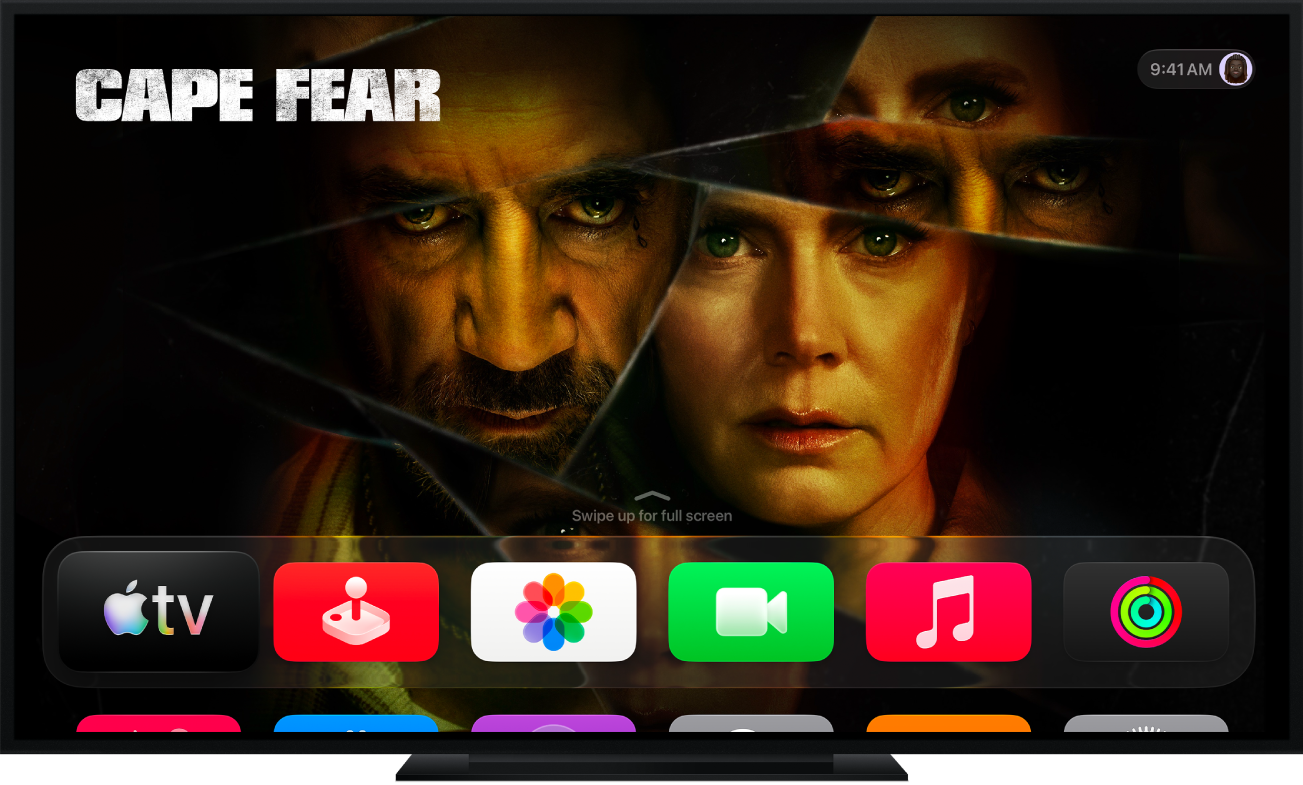
Use the tvOS 27 Home Screen as the stable baseline
Apple’s current tvOS 27 guide shows the Home Screen used here as the stable interface baseline before a title triggers range or frame-rate matching.
Confirm that this kind of static Home Screen remains stable on the selected base Format, then compare what happens only when playback starts or stops.
Model scope
Apple TV 4K running the tvOS 27 interface shown; the image does not display Match Content controls or prove the output format selected on a reader’s television.
Step 2
Set Match Dynamic Range on its own
On Apple TV 4K, open Settings > Video and Audio > Match Content and turn on Match Dynamic Range only when the goal is to watch content in its original dynamic range.
Apple’s United States and Canadian Match Content articles limit this control to Apple TV 4K and define it by original dynamic range, not by frame-rate switching.
Step 3
Set Match Frame Rate on its own
On Apple TV 4K or Apple TV HD, turn on Match Frame Rate and play a known film-rate title and a known TV-rate title.
Apple documents frame-rate matching for content encoded at 60, 50, 30, 25, and 24 fps, with refresh rates appropriate for the region; this is a different control from Match Dynamic Range.
Step 4
Use QMS only for frame-rate delay reduction
If Apple TV 4K exposes Quick Media Switching and the television supports it, enable QMS to reduce delay between frame-rate changes. When available, run Optimize QMS so formats share chroma, then accept it only when the resulting display remains stable.
The current tvOS 27 User Guide places QMS under Match Content for frame-rate switching and says it works best with the same chroma; it does not describe QMS as a dynamic-range switch.
Step 5
Finish the remaining checks
Verify uncertain display modes
Under Unverified Formats, select only the mode you need and complete Apple’s short display test; accept it only if the image remains correct.
Apple provides a short verification test when Apple TV cannot automatically determine which formats the display supports.
Validate the selected HDMI link
Run Check HDMI Connection for the current Apple TV settings. If the selected output remains unusable, use Reset Video Settings to return Apple TV 4K to settings compatible with the television, then rebuild Match Dynamic Range, Match Frame Rate, and QMS one at a time.
The current tvOS 27 guide provides distinct controls to check the active HDMI settings and to reset video output when those settings are not usable.
Scope and limits
Before you apply this advice
This covers: United States Apple TV 4K and Apple TV HD owners configuring Match Dynamic Range or Match Frame Rate with a compatible television or projector. Current tvOS 27 QMS, Optimize QMS, HDMI-check, and reset controls are scoped to Apple TV 4K where the option is exposed. Canada is included only where Apple’s Canadian English Match Content article and Canadian English tvOS 27 User Guide publish matching menu and QMS wording.
This does not cover: Calibrating the television, app-specific playback bugs, Dolby Atmos audio, receiver configuration, HDMI cable product recommendations, declaring that a specific TV supports QMS, or promising that QMS removes dynamic-range blanking. It excludes United Kingdom, European Union, Australia, Japan, and other-region Apple TV SKUs, menu translations, warranty and support policies, prices, or availability the cited United States and Canadian sources do not support.
- Do not accept an unverified format if the picture is distorted, intermittent, or absent during Apple’s test.
- Do not infer QMS support from a television model family or marketing term; confirm the exact TV input and current Apple TV option.
- Do not use QMS as a substitute for Match Dynamic Range or as a promise that dynamic-range transitions will stay seamless.
- Return to a stable verified format when video does not recover after normal switching.
Sources
Where the facts come from
- 01Apple SupportTurn on Match Dynamic Range or Match Frame Rate on your Apple TV
United States Apple Support re-opened 2026-09-21: Settings > Video and Audio > Match Content path; Match Dynamic Range scoped to Apple TV 4K; Match Frame Rate scoped to Apple TV 4K or Apple TV HD; encoded rates 60/50/30/25/24 fps; blanking or flicker during switching; Unverified Formats short display test. Does not define QMS.
- 02Apple Support — CanadaTurn on Match Dynamic Range or Match Frame Rate on your Apple TV
Canadian English Apple Support re-opened 2026-09-21: matching Match Dynamic Range / Match Frame Rate model scope, encoded rates, blanking note, and Unverified Formats test used to include Canada without inferring from the United States article alone.
- 03Apple TV User GuideChange video settings on Apple TV 4K
Current tvOS 27 User Guide re-opened 2026-09-21: automatic best-available playback boundary; Format and Chroma; Match Content wording that separates Match Dynamic Range, Match Frame Rate, and QMS; Optimize QMS same-chroma guidance; Check HDMI Connection; Reset Video Settings; options vary by Apple TV, display, Aspect Ratio, and Format.
- 04Apple TV 4K User Guide — CanadaChange Video Settings on Apple TV 4K
Current Canadian English tvOS 27 guide re-opened 2026-09-21: matching Match Content, QMS, Optimize QMS, HDMI check, and reset wording used to include Canada for those controls.
- 05Apple TV 4K User GuideApple TV 4K User Guide for tvOS 27
Current tvOS 27 guide welcome page re-opened 2026-09-21 for guide version context, supported Apple TV 4K generations, and the official Home Screen image used only as the stable pre-playback visual baseline.