Start with what you see
Let the result choose the next step
The SSID is missing from Internet Settings
Move closer to the router and press Y to search again. Then prove other devices can browse sites before assuming only the console failed.
Nintendo’s missing-name checks are range plus rescan, then the wireless environment—not a hidden advanced menu here.The SSID is listed but grayed out
Stop and change the router to WPA-PSK(AES), WPA2-PSK(AES), or WPA3-SAE(AES). Do not keep entering a password on a grayed network. WEP is not supported.
Grayed means unsupported security type on Switch 2, per the connect article and the current FAQ.The connection test fails and shows an error code
Write the exact code and on-screen message and open Nintendo’s article for that code. Do not apply generic network tweaks from these steps.
The connect article’s failure outcome is a code-specific hand-off, not a complete repair.Other household devices also cannot open websites
Confirm modem-to-home-internet and, when the router is its own box, modem-to-router WAN/Internet, then power-cycle that equipment unplugged at least 30 seconds.
A dead whole network is an ISP or router problem. Nintendo’s remaining contact list is network administrator, router manufacturer, or ISP.You need internet while the console is undocked
Keep a wireless network configured even if docked Ethernet currently works.
Nintendo recommends wireless in addition to wired because wired requires the dock.
Step 1
Stay within 10 feet of the wireless router
Place the Nintendo Switch 2 within 10 feet of the wireless router so the console has a strong wireless signal.
Nintendo’s first wireless step is distance, not a hidden network setting on the console.
Step 2
Open Internet Settings from the HOME Menu
Select System Settings from the HOME Menu. Select Internet, then Internet Settings. The console automatically searches for nearby wireless networks.
Nintendo’s documented menu is HOME Menu → System Settings → Internet → Internet Settings for both wireless and the later wired option.
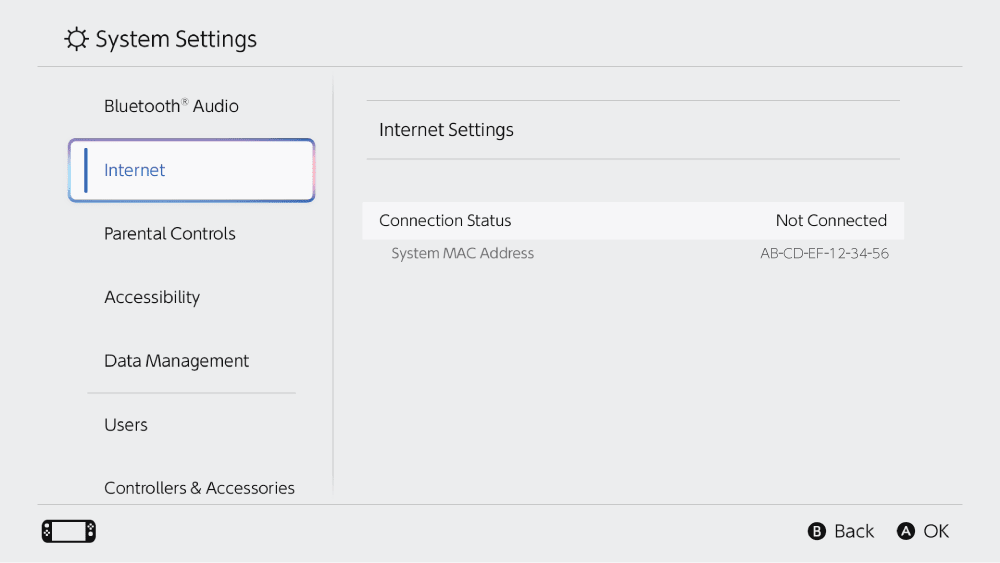
System Settings Internet row
Nintendo’s English System Settings still shows Internet selected and Internet Settings with Connection Status Not Connected.
The screenshot locates Internet Settings after System Settings is open. It does not show the HOME Menu icon succeeding or a completed connection.
Model scope
Nintendo Switch 2 in the United States using Nintendo Americas English support stills; the same article applies in Canada.
Step 3
Choose the SSID, or rescan if it is missing
Select the network name (SSID) from the list. If the name is not listed, stand closer to the wireless router and press the Y Button to search again. If the name is still missing after that rescan, Nintendo says this may indicate an issue with the wireless network environment—prove other devices can browse sites before assuming only the console failed.
A missing SSID is a list/range problem first. Nintendo’s connect article does not invent a hidden-SSID procedure here.
Step 4
If the SSID is grayed out, stop for unsupported security
If the network name is grayed out, Nintendo says the wireless security type is not supported by Switch 2. Documented supported types are WPA-PSK(AES), WPA2-PSK(AES), and WPA3-SAE(AES). The Switch 2 internet FAQ states WEP is not supported. Change router security using the router manual or the router manufacturer; brand-specific router menus are not walked here.
A grayed SSID is a security-type miss, not a password retry. WEP is excluded because the current FAQ states it is not supported.
Step 5
Finish the remaining checks
Enter the password and run the connection test
Use the on-screen keyboard to enter the wireless password if one is required. The console tests the connection. When the test finishes, select OK. If the test fails, an error code and message appear. Copy that exact code and message and search Nintendo’s support article for that code; do not continue this setup as a substitute repair.
Nintendo’s wireless flow ends at the test and a code-specific hand-off. MTU, DNS, port, or NAT steps are not invented here.
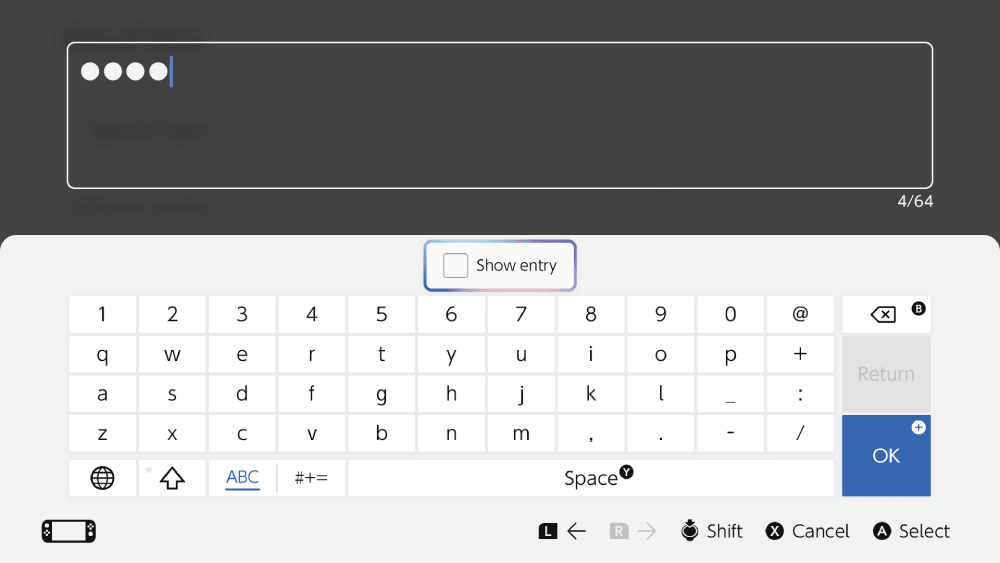
Wireless password keyboard
Nintendo’s English still shows the password entry field, Show entry, and OK on the on-screen keyboard.
The screenshot identifies the password-entry screen used before the connection test. It does not show the test result or a working network.
Model scope
Nintendo Switch 2 in the United States using Nintendo Americas English support stills; the same article applies in Canada.
For Ethernet, dock the console and cable the dock to the router
The Switch 2 must be docked to use a wired connection. Connect an Ethernet cable to the Nintendo Switch 2 dock LAN port and the other end to the router or gateway. Place the console in the dock. Open System Settings → Internet → Internet Settings (the console searches for wireless networks first). When Wired Connection is available, select it, then select Connect to the Internet via Wired Connection. The console tests the connection. If the test fails, use the exact error code and message for a code-specific article. Nintendo also recommends setting up wireless so the console can go online when it is not in the dock.
Wired internet on Switch 2 uses the dock LAN port. Nintendo does not document a USB Ethernet adapter on the connect article.
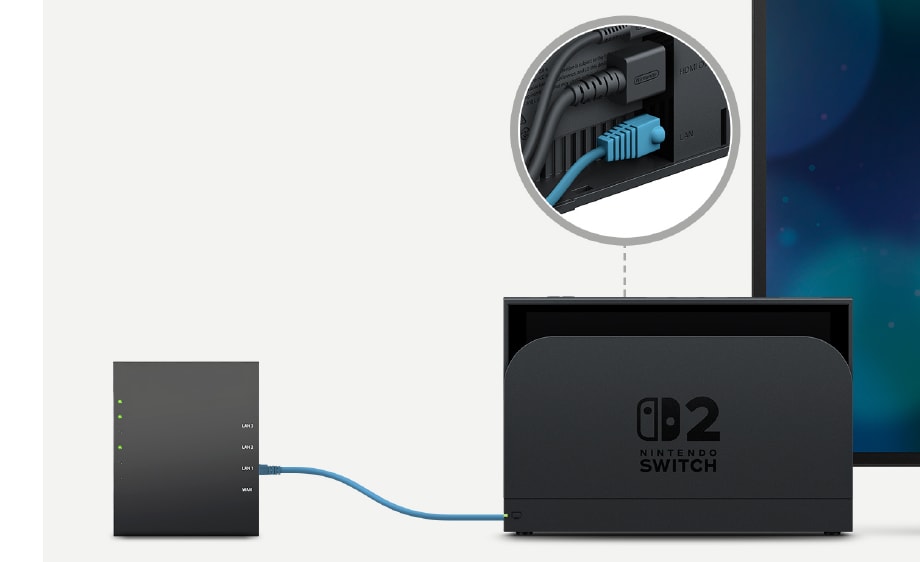
Dock LAN port to router
Nintendo’s figure shows an Ethernet cable from a router into the Switch 2 dock LAN port, with HDMI OUT labeled beside it.
The still locates the dock LAN port used for wired setup. It does not show the console docked in this frame or a passed connection test.
Model scope
Nintendo Switch 2 in the United States using Nintendo Americas English support stills; the same article applies in Canada.
If the whole home network is down, prove other devices first
On another computer, tablet, or laptop on the same wireless network, open a few websites. If those devices fail, confirm the modem is connected directly to the home internet connection. If the router is its own box, confirm an Ethernet cable runs from the modem into the router’s WAN or Internet port. Power-cycle the modem and router with the equipment unplugged at least 30 seconds, then try those other devices again. If still no device can connect, contact the network administrator, the router manufacturer, or the Internet service provider. Do not factory-reset the router as a reader step here.
Nintendo’s network-environment article is a whole-network proof, not a Switch 2 service conclusion. Firmware or factory-reset work is manufacturer-assisted on that support page, not a reader procedure here.
Scope and limits
Before you apply this advice
This covers: Nintendo Switch 2 consoles in the United States that need a first wireless or docked wired internet connection, or that fail Nintendo’s on-console connection test and must leave with the displayed error code. The same Nintendo Americas English setup and network-environment checks apply in Canada.
This does not cover: A complete repair for a specific Nintendo error code (use the article for the exact code shown); original Nintendo Switch, Switch Lite, or Switch – OLED Model internet setup; Nintendo Account, Nintendo eShop, or Nintendo Switch Online membership as a substitute for the connection test; MTU, DNS, port, or NAT changes; a reader-performed router factory reset; console service as the outcome of this setup article; United Kingdom, European Union, Japan, Australia, or other-region Nintendo support sites, hardware SKUs, menu translations, wireless-regulatory rules, prices, or availability that the cited North American sources do not support.
- Do not call this setup a finished repair when the connection test fails. Leave with the exact error code and message.
- Do not change MTU, DNS, ports, or NAT here. Those steps are not in the cited Switch 2 connect, FAQ, or network-environment articles as used here.
- Do not factory-reset the router as a reader step. Nintendo’s network article sends remaining router firmware or factory-default work to the manufacturer.
- Do not use Ethernet while the Switch 2 is undocked. Nintendo requires the console in the dock for wired connection.
- Do not keep retrying a grayed-out SSID. That network uses a security type Switch 2 does not support; WEP is not supported.
- Do not publish or rely on a wireless-modes list from these support pages. The connect article currently lists 802.11ba among other modes; the FAQ lists 802.11 a/b/g/n/ac/ax. That disputed detail is omitted here.
- Do not send the console to Nintendo service on the strength of the connect article. It does not conclude hardware failure.
- Do not follow United Kingdom, European Union, Japan, Australia, or other-region Nintendo internet articles as United States or Canada procedure.
Sources
Where the facts come from
- 01Nintendo SupportHow to Connect to the Internet on Nintendo Switch 2
Nintendo Americas English Switch 2 connect path re-opened 2026-09-06. Supports: wireless within 10 feet of the router; HOME Menu → System Settings → Internet → Internet Settings; choose SSID; if missing, move closer and press Y to search again; grayed SSID means unsupported security; supported security WPA-PSK(AES), WPA2-PSK(AES), WPA3-SAE(AES); password if required; connection test then OK; failed test shows an error code and message to search on Nintendo support; wired requires the console docked; Ethernet from dock LAN to router or gateway; Internet Settings then Wired Connection → Connect to the Internet via Wired Connection; keep wireless configured for undocked use. Also lists 2.4 GHz and 5 GHz. Does not support a complete error-code repair, MTU/DNS/port/NAT changes, or console service. Wireless-modes line currently renders 802.11ba plus b/g/n/ac/ax; that list conflicts with FAQ 68179 (802.11 a/b/g/n/ac/ax) and is omitted from the procedure. A real Chromium load later resolved the in-page symbolic figure names on that article to queryless public URLs under https://csassets.nintendo.com/noaext/image/private/f_auto/q_auto/t_KA_default/; selected stills are published on this page. Independent HEAD requests on those queryless CDN URLs returned HTTP 200. This source note does not claim every asset URL passed a later content audit.
- 02Nintendo SupportNintendo Switch 2 Internet Connection FAQ
Nintendo Americas English Switch 2 internet FAQ re-opened 2026-09-06. Supports: Nintendo Account is not required to connect the console online but is required to play games online or use features such as Nintendo eShop; supported security WPA-PSK(AES), WPA2-PSK(AES), WPA3-SAE(AES); WEP is not supported; 2.4 GHz and 5 GHz Wi-Fi; dock has a built-in LAN port; Ethernet into the router and the dock, then dock the console. Compatible-router line lists supported wireless standards as 802.11 a/b/g/n/ac/ax, which conflicts with 68460’s wireless-modes list (including 802.11ba); this guide does not publish either modes list in the procedure. Does not support MTU/DNS/NAT, a specific error-code repair, or console service.
- 03Nintendo SupportNetwork Internet Connection Troubleshooting
Nintendo Americas English network-environment article re-opened 2026-09-06 (applies across several Nintendo families including Switch 2). Supports only the whole-network branch used here: other wireless devices should browse a few websites; if they cannot, modem connected directly to home internet; if the router is separate, Ethernet from modem to the router WAN or Internet port; power-cycle modem and router at least 30 seconds; if no devices connect afterward, contact the network administrator, router manufacturer, or ISP. The same page later offers manufacturer-assisted firmware update and factory-default reset; those are not reader steps in this guide. Does not support MTU 1400, DNS, ports, NAT, or a Switch 2 hardware-service conclusion.