Start with what you see
Let the result choose the next step
Sign-in fails while PlayStation status reports an incident
Wait for the status board to clear and retest without reinstalling or resetting devices.
An external PlayStation Network condition explains the failure.You can sign in, but the app cannot find or start the console
Recheck same-account sign-in, console enablement, PS4 primary activation, then PC or Mac manual pairing.
The account can authenticate, but console readiness or discovery still blocks the session.Remote Play works on the same network but not remotely
Compare the outside network’s NAT type, UDP 8572 access, and available upload and download capacity.
Console enablement and account pairing work; the remote network is the difference.A wired link works but Wi-Fi is unstable
Improve wireless placement, congestion, or signal rather than changing console account settings.
Remote Play works when the wireless variable is removed.
Step 1
Prove console readiness
Keep the console online on or in rest mode, enable Remote Play, update system software, and set the rest-mode network and wake options if you start from rest mode. On PS4, activate the console as primary before Remote Play.
PlayStation lists an online or rest-mode console, enabled Remote Play, current system software, and PS4 primary activation as setup requirements.
Step 2
Fix sign-in before searching for a console
If you cannot sign in to PlayStation Network in the Remote Play app, open the PlayStation status page, confirm the device has internet, restart the app, restart the device, then reinstall the app if sign-in still fails.
PlayStation lists sign-in failures under status, device internet, and app reinstall steps before console discovery.
Step 3
Unblock a session that will not start
Sign in to the same account on the console and Remote Play device. Recheck console setup, then test connectivity on both sides. Disable antivirus blocks or add an exception, sign out and back in, restart or reinstall the app, and deactivate then reactivate the console if needed. On PC or Mac, manually pair the console when search still fails.
PlayStation’s start-failure sequence covers account match, setup, connectivity, antivirus, app reinstall, reactivation, and PC or Mac manual pairing.
Step 4
Test both networks and NAT limits
Run the console and device network tests, pause other downloads, prefer 5 GHz Wi-Fi, and use Ethernet for a PC, Mac, or console when possible. Confirm at least 5 Mbps upload and download, with 15 Mbps recommended. Check NAT type in the app and ask the ISP or router administrator about UDP port 8572 or NAT Type 3.
Remote Play needs usable upload and download on both ends. PlayStation warns that NAT Type 3 or a blocked UDP 8572 link may prevent a connection.
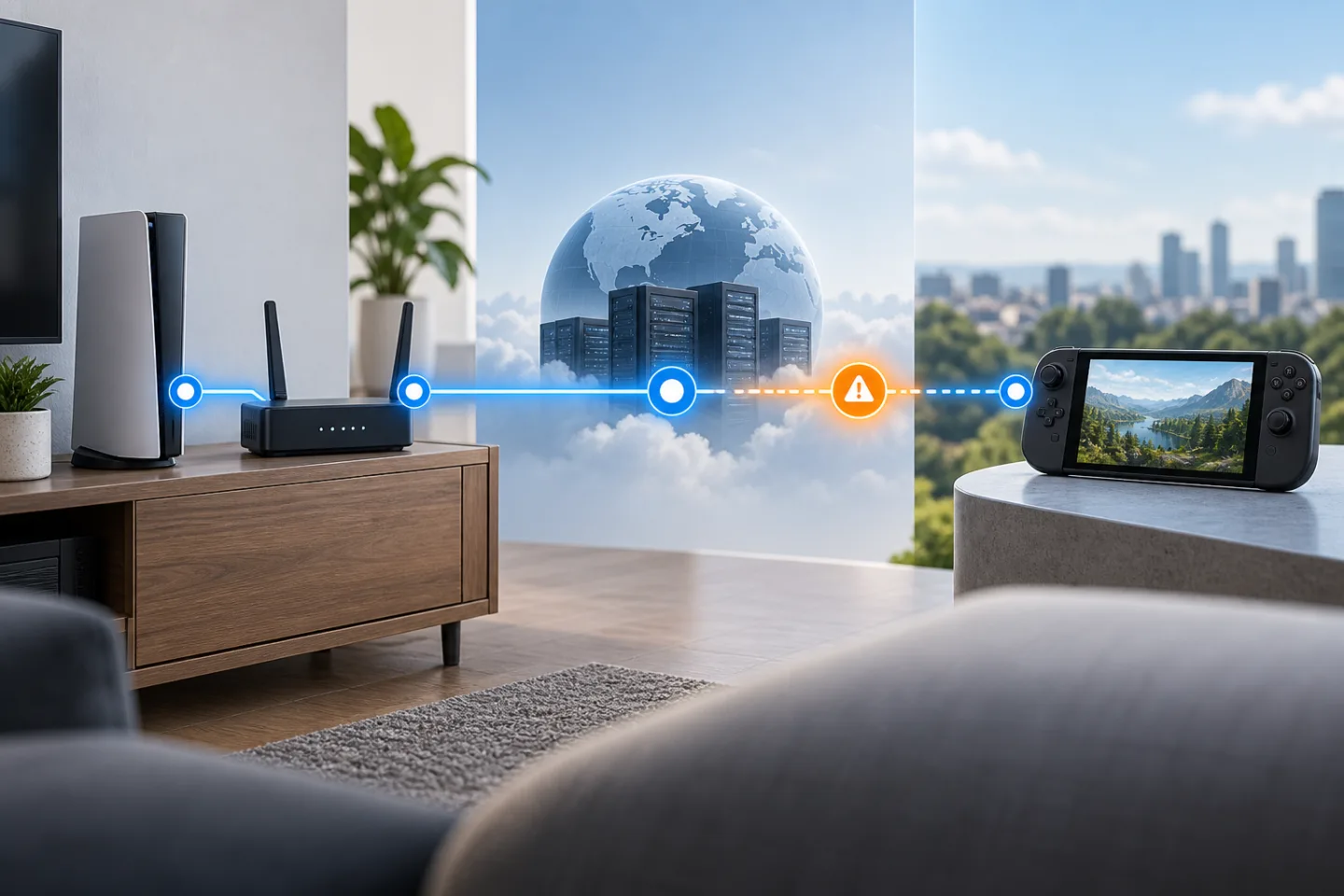
Remote Play is a chain, not one speed test
GearCurrent illustration of the Remote Play connection chain. It is conceptual, not a latency measurement or a PlayStation product photograph.
The checkpoints represent console setup, local network, internet connection, and remote network so the first failing segment can be isolated.
Model scope
Conceptual orientation for United States PlayStation Remote Play troubleshooting using the cited PlayStation requirements.
Step 5
Fix a broken Remote Play app
Update PS Remote Play to the latest version. On a crashing PC, delete the local AppData PS Remote Play folder, reinstall the app, and install a current supported Visual C++ package if the crash continues. Reinstall again for a blank PC screen after a restart, and update the graphics driver if the blank screen remains.
PlayStation isolates app update, antivirus, crash, and blank-screen fixes from router changes.
Scope and limits
Before you apply this advice
This covers: PS Remote Play on Windows, Mac, iPhone, iPad, Android, or Android TV in the United States when sign-in, startup, console search, or connection fails.
This does not cover: PlayStation Portal hardware faults; controller pairing after a healthy Remote Play session; bypassing account security; unauthorized corporate firewall changes; guaranteeing performance on congested mobile networks; and United Kingdom, European Union, Australia, Japan, or other-region PlayStation SKUs, menu translations, warranty and support policies, prices, or availability the cited United States PlayStation Support article does not support.
- Do not expose the console through unsafe port forwarding or disable a firewall without administrator guidance.
- Do not change NAT or router settings on a managed network without authorization.
- Contact the ISP, router administrator, or PlayStation Support when NAT Type 3 or a reproducible supported setup remains blocked.
Sources
Where the facts come from
- 01PlayStation SupportHow to troubleshoot Remote Play issues
United States PlayStation Support Remote Play troubleshooting re-opened 2026-09-07. Supports console online or rest-mode setup, Remote Play enablement, system software updates, same-account sign-in, PS4 primary activation, status-page checks for sign-in failures, start-failure steps including antivirus exceptions, deactivate/reactivate, and PC or Mac manual pairing, console and device connectivity tests, 5 Mbps minimum and 15 Mbps recommended speeds, UDP port 8572, NAT Type 3 limits, app update and reinstall, and escalation to ISP, router help, or PlayStation Support.