Identify the exact model code
Open Settings > System > About and write down the Model field. If the device cannot boot, read the model from the physical label or original packaging.
Retail names repeat across generations; Roku’s support tables and product pages distinguish devices by model code.
Record the installed OS state
Run Settings > System > Software update > Check Now, then record the resulting software version, build, and last-update time.
This shows whether a long-offline device differs from one that is already at the OS release Roku will still deliver for that model.
Classify Current, Updatable, or Legacy
Find the model in Roku’s Current, Updatable, or Legacy hardware table. For Legacy hardware, read the listed latest Roku OS version.
Roku’s class is the official line between still-supported OS updates and a hard OS ceiling.
Decide keep versus replace from ownership needs
Keep a Current or Updatable model when required apps, playback formats, network connection, remote controls, and accessibility features still work after Check Now. Replace only when a Legacy OS ceiling, missing TV formats, missing ports, or another documented capability gap blocks a required use—not because the player is old.
Age and manufacturing status alone do not prove replacement is necessary; Updatable models can still receive the latest Roku OS.
Match one missing capability to a current U.S. class
Use Roku’s current United States player pages and comparison table to map the gap: Streaming Stick for HD; Streaming Stick Plus for 4K HDR; Streaming Stick 4K for Dolby Vision and long-range Wi-Fi; Ultra for Ethernet, USB, Wi-Fi 6, Dolby Atmos, and Voice Remote Pro; Streambar SE when the gap is combined 4K streaming and TV audio. Open the matching product page and verify the live specification before buying.
Successor choice follows the documented missing capability, not an editorial ranking or a live sale badge.
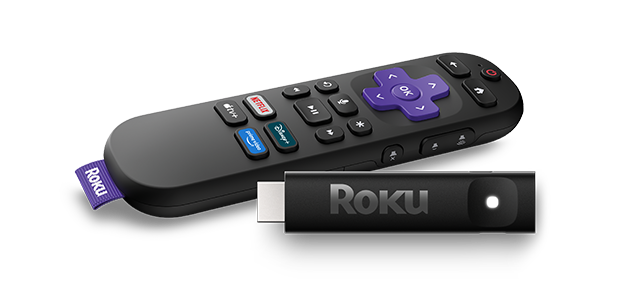
Compact 4K HDR replacement option
Roku positions Streaming Stick Plus as a compact 4K HDR player in its current United States lineup.
Choose this model only when 4K HDR is the documented gap; Roku’s stick-family pages put Dolby Vision, long-range Wi-Fi, wired networking, USB, and premium-remote needs on other models.
Model scope
Current United States Roku Streaming Stick Plus product page reviewed September 6, 2026; appearance and availability can change.
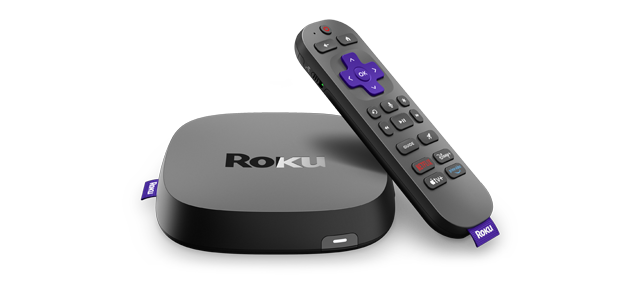
Port-rich replacement option
Roku’s current United States Ultra page assigns Ethernet, USB, Wi-Fi 6, Dolby Atmos, Dolby Vision, and Voice Remote Pro to this class.
Verify Ultra when the documented gap is those published extras—not merely because the old player is aging.
Model scope
Current United States Roku Ultra product page reviewed September 6, 2026; specifications and availability can change.
Make the choice
Choose the situation that sounds like yours
Current models are manufactured and fully supported; replacement is optional, not automatic.
No longer manufactured does not mean it has lost latest Roku OS support.
Legacy hardware cannot support newer Roku OS versions; normal updates will not raise the ceiling.
Working ownership needs beat age-based replacement pressure.
Scope and limits
Before you apply this advice
This covers: United States owners of Roku streaming players or Roku TV systems who need to decide whether to keep or replace the device using Roku’s United States Support, Developer hardware tables, and current player product pages. Canada is not named because no Canadian first-party support-status or product page is cited here.
This does not cover: A universal “best Roku,” live prices or discounts, retailer inventory, Canada-specific availability or pricing inferred from United States pages, generic black-screen or remote pairing trees, replacing an entire Roku TV panel when an external player may address only the streaming gap, Roku Smart Home devices, physical TV panel failure, third-party channel support guarantees, warranty eligibility, or sideloading unsupported firmware. It excludes United Kingdom, European Union, Australia, Japan, and other-region models, menus, policies, prices, and availability not supported by the cited United States pages.
- Do not replace a Roku solely because of age when required apps and playback still work after Check Now.
- Do not read a sale price or a retailer badge as proof that replacement is required.
- Do not sideload firmware or developer builds intended for another Roku model.
- Do not repeatedly factory-reset a Legacy unit that is already at its documented OS maximum expecting a newer OS.
- Do not discard a Roku TV panel when the gap may be only the external player, remote, network, or one app.
- Do not invent Canada price, stock, or support status from United States-only pages.
Sources
Where the facts come from
- 01Roku SupportHow to know if you have a Roku TV or a Roku branded TV
United States Support menu for Settings > System > About and the Model field used to identify the exact device.
- 02Roku SupportHow to find the serial number or device ID for your Roku device
Confirms Settings > System > About for players and Roku TV systems, plus physical-label and packaging fallbacks when the device will not boot.
- 03Roku DeveloperHardware specifications
Official Current, Updatable, and Legacy definitions, model codes, and Legacy maximum Roku OS versions. Independently re-opened 2026-09-06 for the US CTR pass: Current models are manufactured and fully supported; Updatable models are no longer manufactured but can still receive the latest Roku OS; Legacy models cannot support newer Roku OS versions.
- 04Roku SupportHow to update the software on your Roku streaming device
Official Check Now menu and the software version, build, and last-update fields used before a keep-or-replace decision. Independently re-opened 2026-09-06 for the US CTR pass; last updated June 24, 2026.
- 05RokuCompare Roku streaming players
Current United States player matrix covering Streaming Stick, Streaming Stick Plus, Streaming Stick 4K, Ultra, and Streambar SE; live prices are intentionally not reproduced.
- 06RokuRoku Streaming Stick
Current United States HD Streaming Stick class and the first-party stick-family differences versus Plus and 4K.
- 07RokuRoku Streaming Stick Plus
Current United States compact 4K HDR replacement example and official product image.
- 08RokuRoku Streaming Stick 4K
Current United States Dolby Vision, HDR10+, and long-range Wi-Fi Streaming Stick 4K class.
- 09RokuRoku Ultra
Current United States Ultra class for Ethernet, USB, Wi-Fi 6, Dolby Vision, Dolby Atmos, and Voice Remote Pro, plus the official product image.
- 10RokuRoku Streambar SE
Current United States combined 4K streaming and TV-audio class, including HDMI-ARC or HDMI-plus-optical setup limits.