Check the version on your Roku
Press Home, then open Settings > System > Software update > Check Now. The System update screen shows the current software version, build, and last-update time.
The release date tells you when Roku published the security update. This screen tells you what is installed on your device.
Let an offered update finish
If Check Now finds system software or app updates, allow the download, installation, and restart to complete. Return to the same screen afterward and note the new version and build.
Roku uses Check Now for manual updates and reports the result on the device.
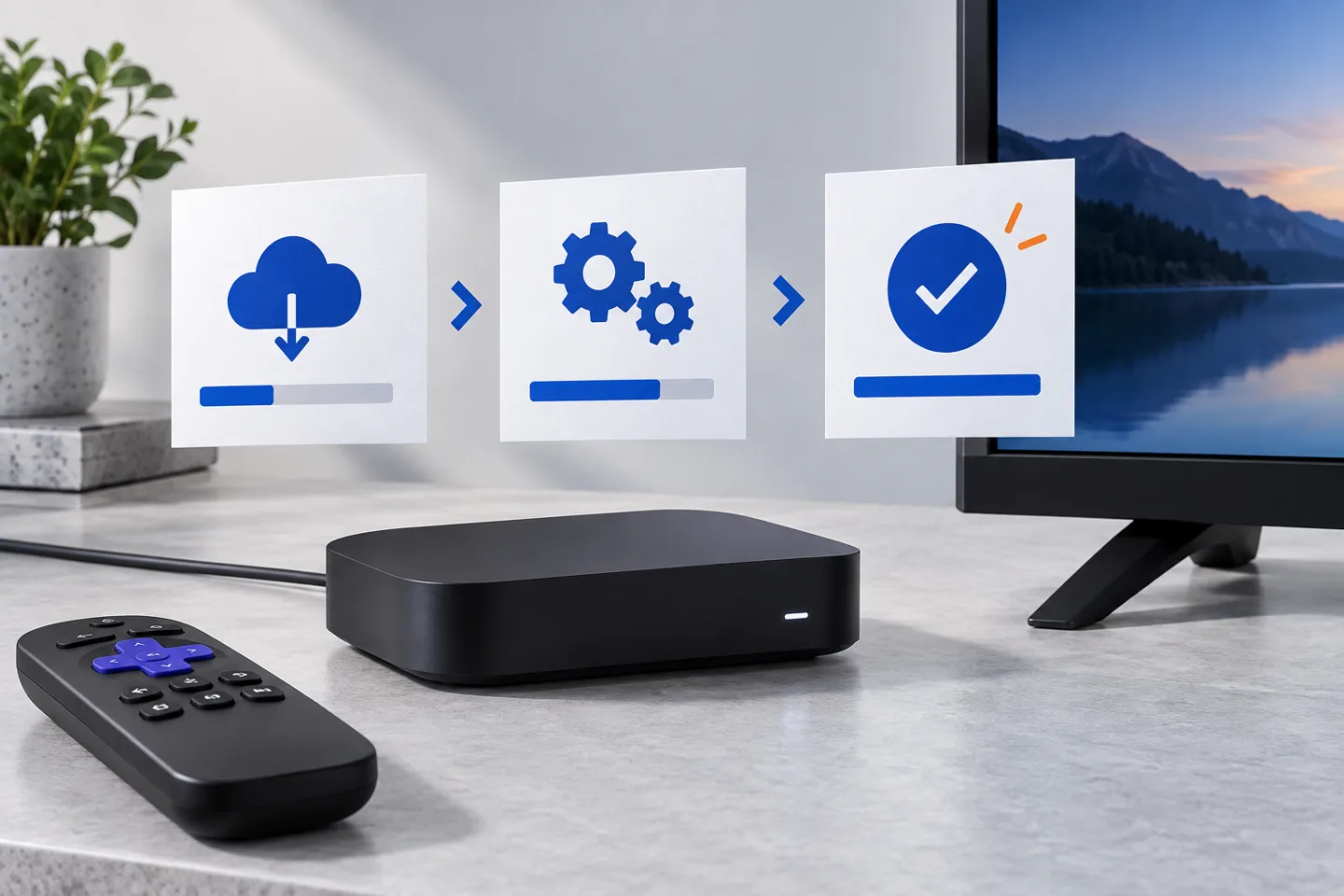
Read a Roku update as a timeline
GearCurrent illustration of an update sequence. It is conceptual, not a Roku interface, model photograph, or proof that one device received an update.
The visual separates a published release date from the later download, installation, and restart on an individual device.
Model scope
Conceptual orientation for the United States Roku OS update record supported by the cited Roku pages.
If 15.3 is not offered, check OS 15 eligibility
Compare the model number with Roku’s OS 15 support list. Roku lists player and Streambar series 9100, 4800, 4600, 4200, 3900, 3800, 3700, and 3600X. It says Roku TV models from 2014 through 2025 are expected to receive OS 15 except 65R648, 75R648, and 75U800GMR.
A listed release date is not a promise that every model will receive the same build at once. Eligibility and the result on your device are more useful than repeated resets.
Make the choice
Choose the situation that sounds like yours
Your Roku has the update. That result applies to this device, not every Roku model.
The update may not be available to that model or device yet. A factory reset does not change eligibility.
Roku does not include these three models in its expected OS 15 TV group.
The security release date and consumer feature notes answer different questions.
Scope and limits
Before you apply this advice
This covers: United States Roku streaming players, Streambars, and Roku TV systems whose owners are checking the OS 15.3 release date or their installed build. Canada is not claimed from the cited Roku sources.
This does not cover: Developer beta enrollment, Roku Smart Home firmware, USB recovery, firmware rollback, individual CVE analysis, or an unpublished model-by-model rollout schedule. It excludes Canadian and other-region models, menus, policies, and release timing not supported by the cited United States sources.
- Do not unplug the Roku or TV during an active firmware installation or restart.
- Do not install developer firmware, another model’s firmware, or an unofficial rollback package.
- Contact Roku support if a supported online device repeatedly fails Check Now or cannot complete an offered update.
Sources
Where the facts come from
- 01Roku SupportRoku OS security updates
Re-opened 2026-09-12. Roku lists OS 15.3 with an August 6, 2026 release date for customer devices. This supports the date, not a promise that every device updated that day.
- 02Roku SupportRoku OS software release notes
United States consumer notes re-opened 2026-10-21. They provide the supported player, Streambar, and Roku TV groups for OS 15 and still show an OS 15.0 section rather than a separate 15.3 feature list.
- 03Roku SupportHow to update the software on your Roku streaming device
Re-opened 2026-09-12. Roku documents Home > Settings > System > Software update > Check Now, the version and build fields, and the automatic download, installation, and restart behavior.